Home › Guides › xTool P2S settings: cut & engrave cheat sheet
xTool P2S settings: cut & engrave cheat sheet
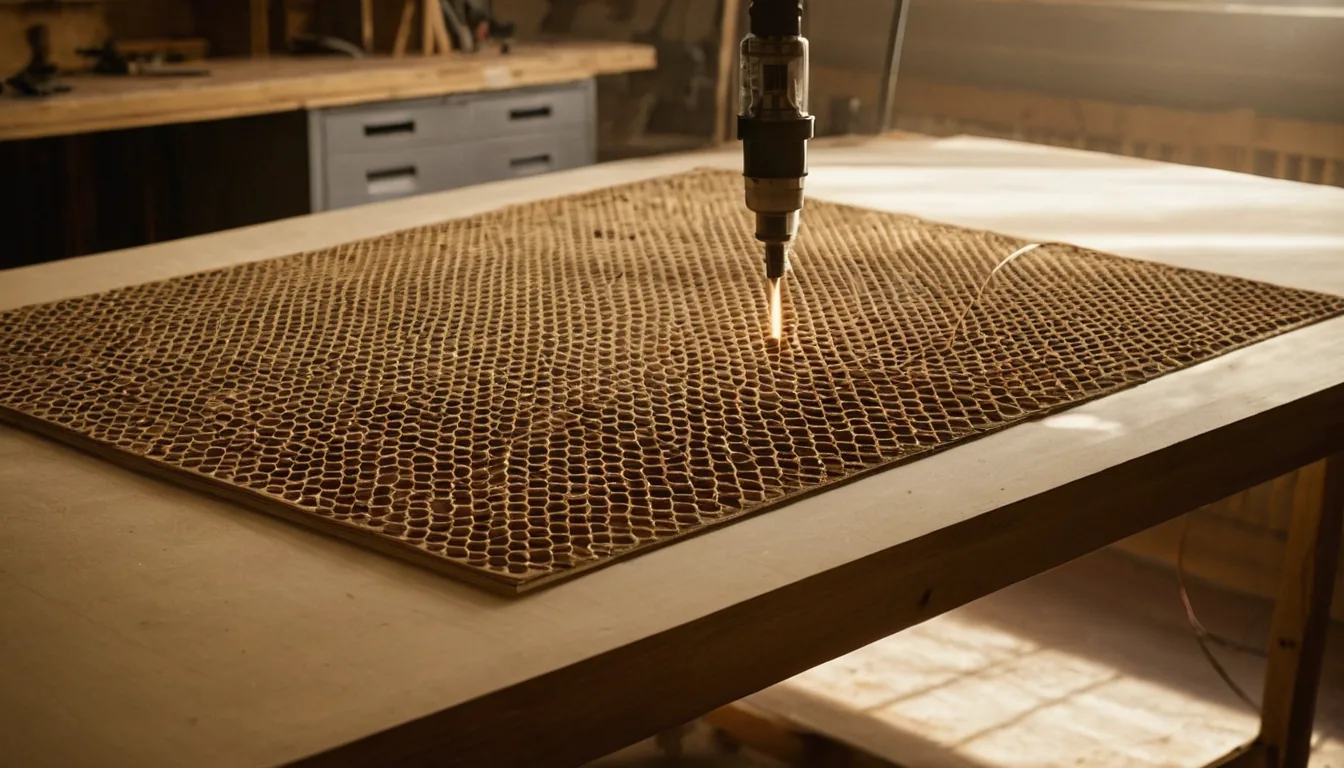
Looking for xTool P2S settings for acrylic, leather, glass, bamboo or cardboard? The P2S is a 55 W CO2 machine, and xTool's own page claims it cuts 3 mm basswood at 35 mm/s. xTool's per-material settings library loads its numbers behind the app, so the table below is built from settings shared by owners and is deliberately cautious. Treat every row as a start, then run a material test grid on your own sheet.
xTool P2S settings (power % / speed mm/s / passes)
Quick answer: on the P2S, start 3 mm plywood at 60% power, 15 mm/s, 1 pass with air assist, and clear or cast acrylic at 60% / 13 mm/s. Both are conservative starts that should cut through; owners report faster speeds once their focus and optics are dialled in. The units are millimetres per second, the same as our xTool P2 page.
Where these numbers come from. xTool publishes per-material settings in its Materials Lab, but the page only shows the parameters after loading them from an app endpoint that the site's robots.txt asks automated tools to stay away from, so we did not copy from it. The table below is therefore settings shared by owners (community mirrors), kept to the cautious end where they disagree. The one hard figure from xTool is its P2S product page, which states a 3 mm basswood cut at 35 mm/s without giving a power value. See how to build your own test grid before trusting any row on a real job.
| Material | Job | Starting point | Range in shared data |
|---|---|---|---|
| Plywood 3 mm | Cut | 60% / 15 mm/s / 1 pass | 60–80% at 20–35 mm/s |
| MDF 3 mm | Cut | 65% / 13 mm/s / 1 pass | 65–80% at 18–20 mm/s |
| Clear / cast acrylic 3 mm | Cut | 60% / 13 mm/s / 1 pass | 70–80% at 12–21 mm/s |
| Clear / cast acrylic 5 mm | Cut | 75% / 8 mm/s / 1 pass | 85% at 7 mm/s |
| Wood | Engrave | 22% / 320 mm/s / 1 pass | 20–25% at 300–400 mm/s |
| Bamboo cutting board | Engrave | 22% / 400 mm/s / 1 pass | one owner row only |
| Acrylic | Engrave | 22% / 300 mm/s / 1 pass | 15–18% at 300 mm/s |
| Glass | Engrave | 25% / 250 mm/s / 1 pass | 20–25% at 250–300 mm/s |
Why the starting points are slow. Owner-shared 3 mm plywood and basswood cuts run from 15 mm/s up to 35 mm/s at 60–80% power, which is a wide spread for a single machine. The spread comes from different plywood glues, lens condition, focus and air assist, not from the P2S itself. A start at the slow end cuts through and costs a little machine time; a start at the fast end leaves uncut tabs that ruin a sheet. Raise speed in steps of about 2 mm/s until the cut just starts to fail, then back off one step.
P2 and P2S. Both are 55 W CO2 machines and owners share one pool of settings for the two, so the rows match our xTool P2 page. The P2S adds a stronger air pump and exhaust fan and faster engraving acceleration according to xTool; none of that changes the tube power. Stronger air assist mainly matters for acrylic edge quality (see troubleshooting below).
Leather, cardboard, felt, paper and slate are left out of the table on purpose. Shared figures for those differ by a factor of two or more between sources (for example corrugated cardboard cuts quoted anywhere from 20% at 120 mm/s to 32% at 48 mm/s), so any single number would be a guess. Use the lowest power that scores, step up slowly, and read the full power and speed chart for the general pattern.
All of these charts in one printable book: The Laser Settings Handbook — 18 machines, 11 material charts, the 15 fixes and a settings log in 168 pages. Read the free 13-page sample.
Get an exact price for the xTool P2S
Settings tell you the speed; turning that into a price means multiplying job time by your hourly rate and adding material and setup. Run your cut or engrave time through the laser engraving time calculator, then use the calculator to turn that time into a full quote.
What a P2S goes through
A CO2 desktop laser burns through stock and optics, so what runs out is sheets and cleaning supplies.
Lens and mirror cleaning kit: Check price on Amazon ↗
Birch plywood 3 mm: Check price on Amazon ↗
Clear cast acrylic 3 mm: Check price on Amazon ↗
Inline booster fan: Check price on Amazon ↗
Disclosure: some links are affiliate links — if you buy through them we may earn a small commission at no extra cost to you. Prices are approximate list prices at the time of writing; always check the current offer.
Bed size: what actually fits
xTool lists the P2S working area as 600 × 305 mm with automatic passthrough for longer pieces (xTool's page advertises signs up to 118 inches). Maximum processing height is 71 mm without the tray and 64 mm with it; with the riser base it rises to 215 mm. For rotary work, the cylinder range is 3–50 mm diameter without the riser base and up to 180 mm with it.
| Common stock | Size | On this machine |
|---|---|---|
| A4 sheet | 297 × 210 mm | Fits |
| 300 × 300 mm craft ply | 300 × 300 mm | Fits |
| 600 × 300 mm sheet | 600 × 300 mm | Fits with 5 mm to spare on the short side |
| 400 × 400 mm sheet | 400 × 400 mm | Does not fit in one pass: cut it down, or use the passthrough for long pieces only |
| 600 × 400 mm sheet | 600 × 400 mm | Does not fit: cut it down first |
| Tumbler (rotary) | up to 180 mm dia. | Fits with the riser base; 3–50 mm diameter without it |
Fitting parts onto the sheet efficiently is where material cost is won or lost. Our nesting tool takes your file and this bed size and tells you parts per sheet.
What the xTool P2S cannot do
- No metal cutting, and no marking of bare metal. A CO2 beam is reflected by bare metal. It marks coated, painted or anodised surfaces by removing the coating; stainless steel and bare aluminium need a fiber laser such as the xTool F1.
- Never PVC or vinyl. Chlorine gas corrodes the machine and is toxic. This is a hard no.
- Thickness has a ceiling. xTool rates one pass at 18 mm basswood and 20 mm acrylic. That is a best case on ideal stock; thick or resinous wood needs several passes.
- Tube power falls with age. A tube several years in will not match settings that cut cleanly when new. Re-run a test grid rather than raising power to compensate.
Troubleshooting: symptom, cause, fix
| Symptom | Usual cause | Fix |
|---|---|---|
| Cut does not go through, top looks fine | Focus off, lens dirty or optical path out of alignment | Clean the lens first, since a resin film costs real power. Then re-focus and check the beam path before touching settings. |
| Acrylic edge frosted instead of glossy | Too much air assist on the cut | Reduce air pressure for acrylic. The P2S pump is stronger than the P2's, so the default may be too high for clear stock. |
| Power seems lower than it used to be | Tube ageing or dirty optics | Clean optics, then re-run a test grid and write down the new numbers instead of holding 100%. |
| Plywood cut leaves uncut tabs in places | Glue pockets or warped stock lifting out of focus | Flatten the sheet (tape or weights), slow the speed by 2 mm/s, or add a second pass at the same settings. |
| Scorch marks around engraved areas | Smoke redepositing on the surface | Mask with transfer tape, check extraction, wipe with a damp cloth afterwards. |
| Engrave depth uneven across the bed | Bed not level or stock warped | Level the bed and use flat stock; warped sheets are the usual cause, not the machine. |
If none of that helps, work through why won't my laser cut all the way through?
Material cost per sheet
Settings give the time; material gives the rest of the price. A 600 × 300 mm sheet is the largest standard size that sits on the bed in one piece, so buy sheet stock at that size rather than cutting down larger sheets. See where to buy laser materials for suppliers who stock it.
FAQ
What are good xTool P2S settings for cutting 3 mm plywood?
Start at 60% power, 15 mm/s, 1 pass with air assist. xTool's own P2S page states a 3 mm basswood cut at 35 mm/s but does not publish the power for it, and settings shared by owners run from 60% at 20 mm/s to 80% at 35 mm/s. Begin at the slow end, then raise speed in 2 mm/s steps on a scrap strip until the cut just fails and back off one step.
What are the xTool P2S acrylic settings?
For 3 mm clear or cast acrylic start at 60% / 13 mm/s, 1 pass, and for 5 mm start at 75% / 8 mm/s. Owners report anything from 70% at 12 mm/s up to 80% at 21 mm/s for 3 mm. Use cast, not extruded, and keep air assist low: too much air frosts the edge instead of flame-polishing it. xTool says the P2S can cut all colours of acrylic including clear, up to 20 mm in one pass.
Can the xTool P2S engrave glass, and what settings?
Yes, a CO2 laser frosts the surface of glass. Start around 25% power at 250 mm/s, 1 pass; shared settings run 20-25% at 250-300 mm/s. Dampen or mask the glass to reduce chipping, run a small test first, and expect a pale frosted mark rather than a deep cut.
What are the xTool P2S settings for leather, leatherette or cardboard?
There is no single trustworthy number: shared figures for leather, faux leather and cardboard differ by a factor of two or more between sources, so we leave them out of the table. Start with the lowest power that scores the surface, raise it in 5% steps on an offcut, and keep air assist on for cardboard, which flares up easily.
Can the xTool P2S cut or engrave metal?
It cannot cut metal at any setting, and it cannot mark bare stainless steel or aluminium because the 10.6 micron CO2 beam is reflected. It can remove paint, powder coating or anodised layers to leave a contrast mark. For bare metal use a fiber laser.
What is the xTool P2S bed size and cutting thickness?
xTool lists a 600 x 305 mm working area with passthrough for longer pieces. One-pass capacity is stated as 18 mm basswood and 20 mm acrylic. Maximum processing height is 71 mm without the tray and 215 mm with the riser base.
How much does it cost to run the xTool P2S?
Laser jobs are priced by machine time: cut length divided by cutting speed, times passes, gives time, and time times your hourly rate plus setup gives the price. Run the job through the free engraving time calculator, then add material and setup.