Home › Guides › xTool S1 settings — cut & engrave cheat sheet
xTool S1 settings — cut & engrave cheat sheet
Starting-point power, speed and pass settings for the xTool S1, a 40 W 450 nm diode machine. These are collected figures, not results from running the machine ourselves. Every machine and material batch differs — treat these as a fast start, then confirm with a material test grid.
Quick answer: On the xTool S1 (40 W diode), 3 mm plywood cuts at 100% power / 600 mm/min / 1–2 passes, MDF at 100% / 700 / 1 pass, and 6 mm plywood at 100% / 300 / 2–3 passes. The S1 marks anodised (anodized) aluminium (aluminum) coatings but cannot cut clear acrylic or bare metal at any setting — for clear acrylic, a CO2 machine like the xTool P2 is the answer instead.
Price a job on the xTool S1 →xTool S1 settings (power % / speed mm/min / passes)
| Material | Job | Setting |
|---|---|---|
| Plywood 3 mm | Cut | 100% / 600 / 1–2 passes |
| MDF 3 mm | Cut | 100% / 700 / 1 pass |
| Plywood 6 mm | Cut | 100% / 300 / 2–3 passes |
| Opaque acrylic 3 mm | Cut | 100% / 300 / 2 passes |
| Leather 2 mm | Cut | 80% / 900 / 1 pass |
| Wood | Engrave | 20% / 8000 mm/min |
| Slate / stone | Engrave | 60% / 6000 mm/min |
Clear acrylic: the xTool S1 is a diode laser and cannot cut clear or transparent acrylic — the ~450 nm beam passes straight through. It can slowly cut dark, opaque acrylic only. For clear acrylic you need a CO2 laser.
Always: use air assist, focus for the exact thickness, and don't hold 100% power to force a cut — slow the speed or add a pass instead. Find your exact numbers with a material test grid.
All of these charts in one printable book: The Laser Settings Handbook — 18 machines, 11 material charts, the 15 fixes and a settings log in 168 pages. Read the free 13-page sample.
Get an exact price for the xTool S1
Settings give you the speed; the calculator turns your file's path length into machine time and cost, scaled to the xTool S1.
Open the xTool S1 calculator →The S1 and what is worth adding to it
The S1 is a 40 W diode: excellent on wood and coated metal, and it will never cut clear acrylic no matter what settings you use — that is a wavelength limit, not a power one.
xTool S1 40 W: xTool store ↗ Check price on Amazon ↗
Air assist set: Check price on Amazon ↗
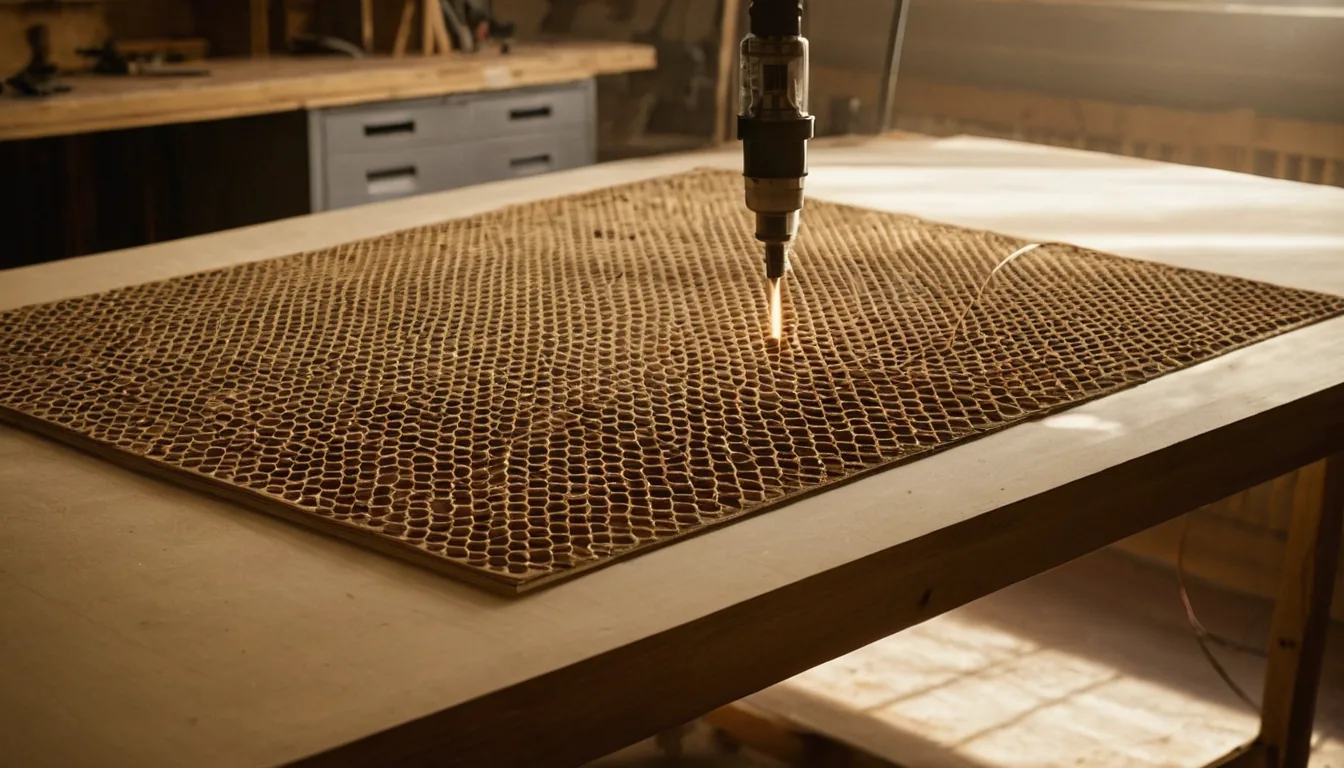
Honeycomb panel: Check price on Amazon ↗
Basswood sheets 3 mm: Check price on Amazon ↗
If clear acrylic matters to you, a CO2 machine is the answer instead — see OMTech vs xTool for what that costs.
Disclosure: some links are affiliate links — if you buy through them we may earn a small commission at no extra cost to you. Prices are approximate list prices at the time of writing; always check the current offer.
Bed size: what actually fits
The xTool S1 40W has a working area of 498 × 319 mm (16 cm²). That decides which stock sizes you can buy without cutting them down first — the single most annoying thing to discover after the delivery arrives.
| Common stock | Size | On this machine |
|---|---|---|
| A4 sheet | 297 × 210 mm | Fits |
| 300 × 300 mm craft ply | 300 × 300 mm | Fits |
| 400 × 400 mm sheet | 400 × 400 mm | Does not fit — cut it down first |
| 600 × 400 mm sheet | 600 × 400 mm | Does not fit — cut it down first |
| 600 × 300 mm sheet | 600 × 300 mm | Does not fit — cut it down first |
Fitting parts onto the sheet efficiently is where material cost is actually won or lost. Our nesting tool takes your file and this bed size and tells you parts per sheet; the sheet yield calculator does the same from plain dimensions.
What the xTool S1 40W cannot do
Knowing the hard limits saves more material than any settings tweak:
- No clear or transparent acrylic. The ~450 nm beam passes straight through it. Dark, opaque acrylic cuts slowly; clear needs a CO2 laser.
- No glass or stone engraving without help. Glass is transparent to the beam — it needs a paint or tape coating to mark at all.
- No metal cutting. Marking anodised or coated metal works; cutting bare metal does not, at any power.
- Thick hardwood is slow. Multiple passes on anything past about 6 mm, and the edge quality drops with each one.
Troubleshooting: symptom, cause, fix
| Symptom | Usual cause | Fix |
|---|---|---|
| Cut does not go through, top looks fine | Focus set for the wrong thickness, or speed too high for the pass count | Re-focus for this exact sheet, then drop speed ~25% before adding a pass. Check the back face, not the top. |
| Edges heavily charred / flaming | No air assist, or too many slow passes stacking heat | Turn air assist on — it matters more than any setting tweak on wood. Prefer fewer, faster passes. |
| Clear acrylic does nothing at all | Physics, not settings | A diode cannot cut clear acrylic. Switch to opaque stock or a CO2 machine. |
| Engrave looks washed out / grey | Power too low, or lines per cm too high for the material | Raise power in 5% steps first. On wood, 50–80 LPC is usually enough — more just costs time. |
| Lines wavy or double-struck | Belt tension or the frame flexing at speed | Check belt tension and that the gantry is square. Reduce engrave speed to confirm it is mechanical. |
If none of that helps, work through why won't my laser cut all the way through? or how to stop burn marks on wood.
Material cost per sheet
Settings tell you the time; material tells you the rest of the price. Typical cut speeds and prices per sheet for the materials this machine handles: Plywood 3 Mm · Plywood 6 Mm · Mdf 3 Mm · Leather 2 Mm · Felt 3 Mm · Cardboard 3 Mm.
To turn any of it into a quote, drop your file into the xTool S1 40W calculator — it applies this machine's speeds to your actual path length. For shop pricing, the hourly rate calculator works out what your machine time is really worth.
FAQ
What power and speed cuts 3 mm plywood on the xTool S1?
On the xTool S1 40 W, a starting point for 3 mm plywood is 100% power at 600 mm/min, 1–2 passes. Values are starting points — run a small test on the same sheet, and use air assist for a clean edge.
Can the xTool S1 cut clear acrylic?
No. The xTool S1 is a diode laser (~450 nm); clear acrylic is transparent to it, so the beam passes straight through. It can cut dark, opaque acrylic slowly. Use a CO2 laser for clear acrylic.
How much does it cost to run the xTool S1?
Laser jobs are priced by machine time: cut length ÷ cutting speed × passes = time, then time × hourly rate + setup. Drop your file into the free calculator scaled to the xTool S1 to get an exact time and price.
What is dot duration on an xTool laser?
Dot duration is how long the laser fires at each individual point when engraving in dot mode, measured in milliseconds — typically 0.1-1.0 ms. It is xTool's name for what other software calls dot time or dwell time. Longer dot duration burns each point deeper and darker but slows the job and widens each dot, so fine detail smears; shorter duration is faster and sharper but lighter. Start at 0.3 ms for wood and 0.5 ms for slate or anodised metal, then adjust in 0.1 ms steps. Dot duration only applies in dot or dithered engraving modes — in normal line (raster) engraving, speed and power control the burn.
What is lines per cm (LPC) in laser engraving?
Lines per cm sets how many engraving passes the head makes per centimetre of travel — the metric equivalent of DPI, and what controls resolution and how long the job takes. Typical values: 50-80 LPC for wood, 80-100 for acrylic and anodised metal, 100-130 for photo engraving. Doubling LPC roughly doubles engraving time, so raise it only until the lines just stop being visible — past that you are paying machine time for detail nobody can see. 100 LPC is about 254 DPI.
What are the xTool S1 settings for MDF?
3 mm MDF cuts on the xTool S1 at 100% power, 700 mm/min, 1 pass. Test on scrap first — MDF density varies by batch and brand.
xTool S1 vs P2 — which one cuts acrylic?
The xTool S1 is a 40 W diode and cannot cut clear acrylic at any setting — the beam passes straight through it. The xTool P2 is a 55 W CO2 laser and cuts clear acrylic cleanly with a flame-polished edge; pick the P2 if clear acrylic matters to you.